Please follow the below instructions when prompted by
Microsoft365 to set up Multi-Factor Authentication.
TABLE OF CONTENTS
- Step 1: Login to Microsoft365
- Step 2: Choose Authenticator App
- Step 3: App Instructions
- Step 4: A QR Code will appear on the screen.
- Step 5: Open Microsoft Authenticator App on mobile phone
- Step 6: Choose "Other account (Google, Facebook, etc.)
- Step 7: Scan QR Code using the mobile phone camera
- Step 8: Account has been added
- Step 9: On the computer screen, press Next:
- Step 10: Input new code into web page
- Step 11: Success!
- Step 12: Congratulations!
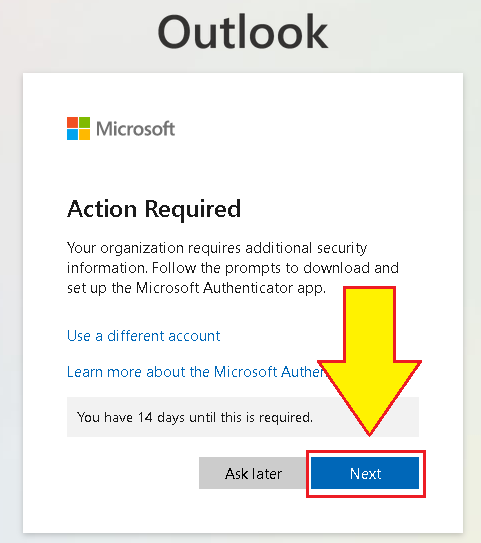
Step 1: Login to Microsoft365
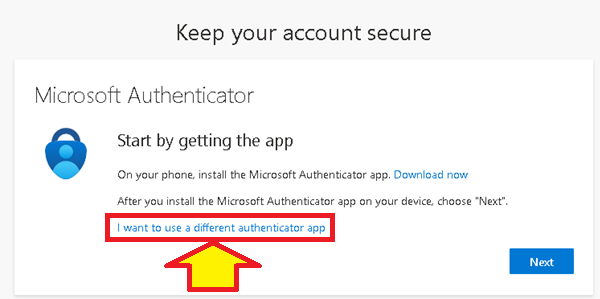
Step 2: Choose Authenticator App
Even though you may be using Microsoft Authenticator, click on "I want to use a different authenticator app"
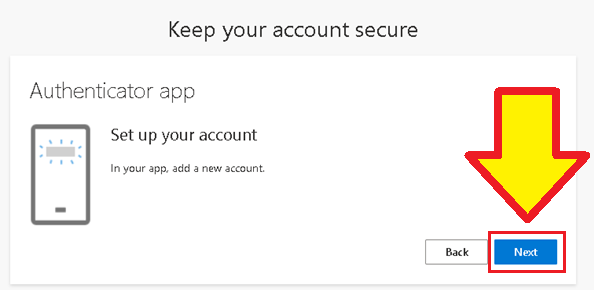
Step 3: App Instructions
The below message appears. Press Next:
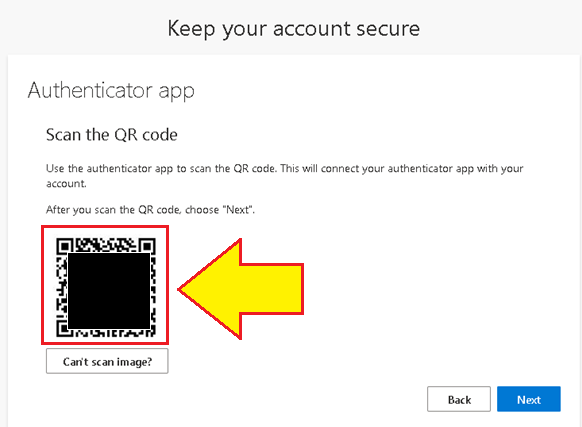
Step 4: A QR Code will appear on the screen.
Step 5: Open Microsoft Authenticator App on mobile phone
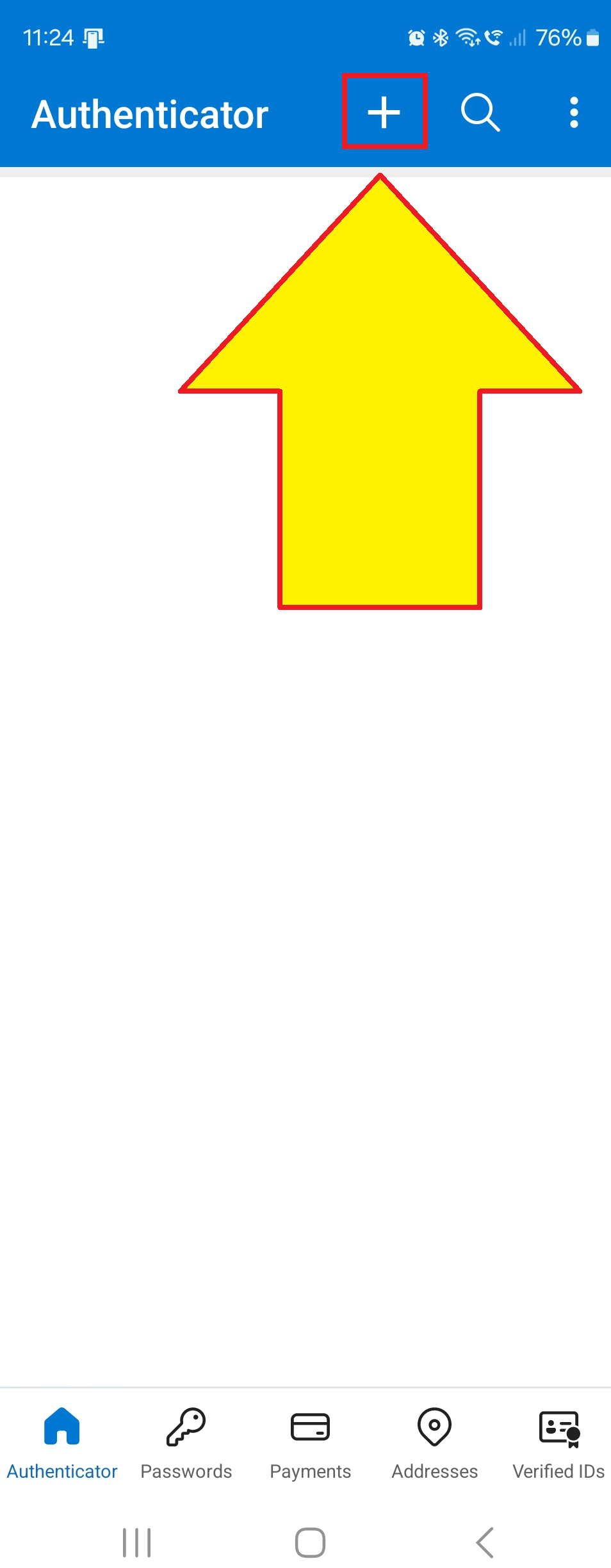
Open the Microsoft Authenticator app on your mobile phone, and press the + symbol in the top right to create a new account:
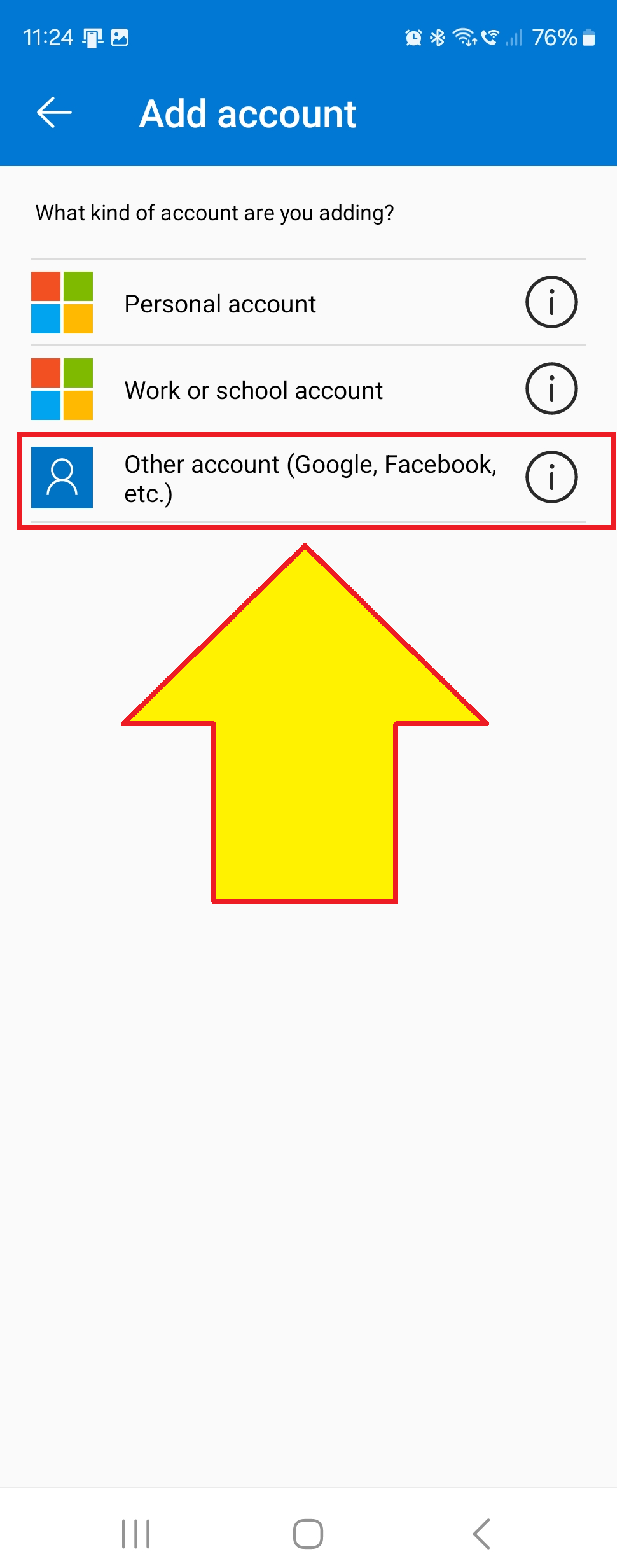
Step 6: Choose "Other account (Google, Facebook, etc.)
Step 7: Scan QR Code using the mobile phone camera
The mobile phone will now scan for the QR Code. Point the phone's camera towards the QR Code on the computer screen:

Step 8: Account has been added
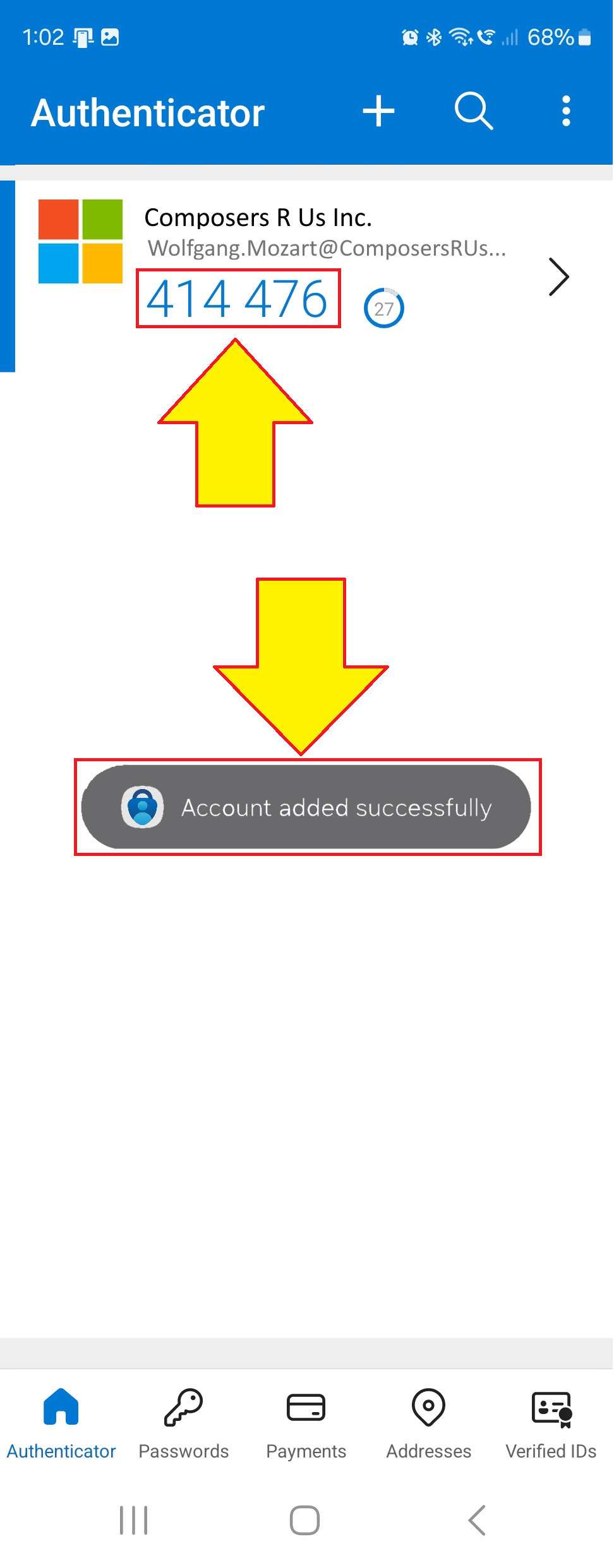
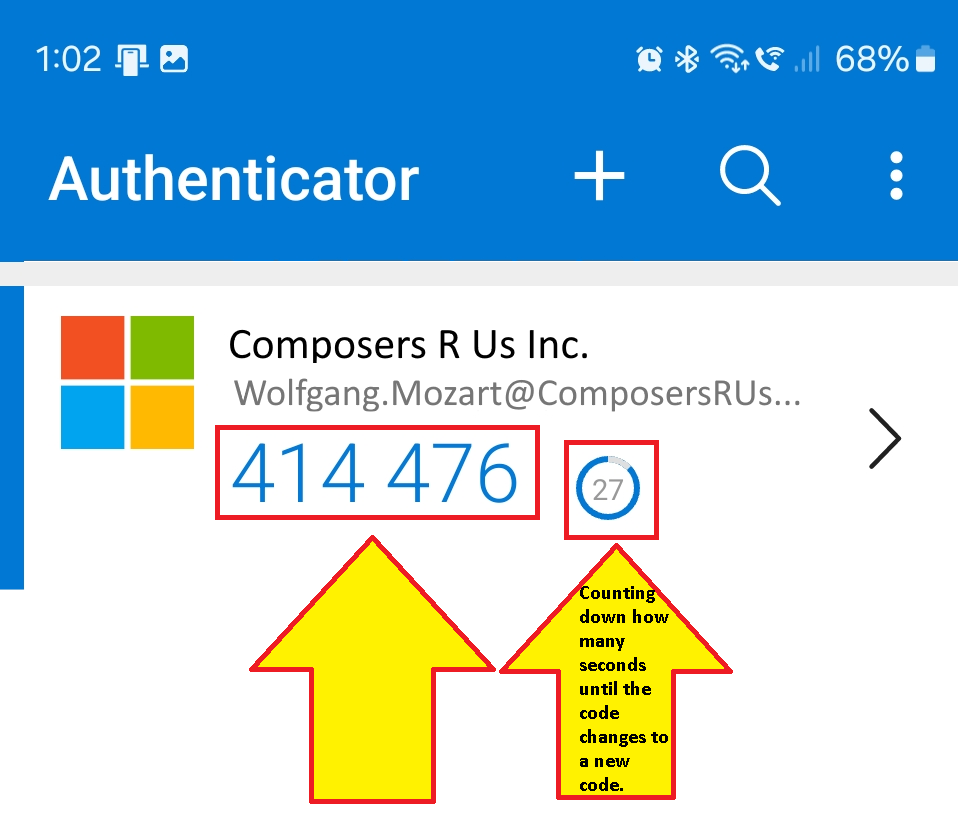
Once it has scanned the QR Code, it will immediately add the new authentication profile, and show you the current corresponding code:
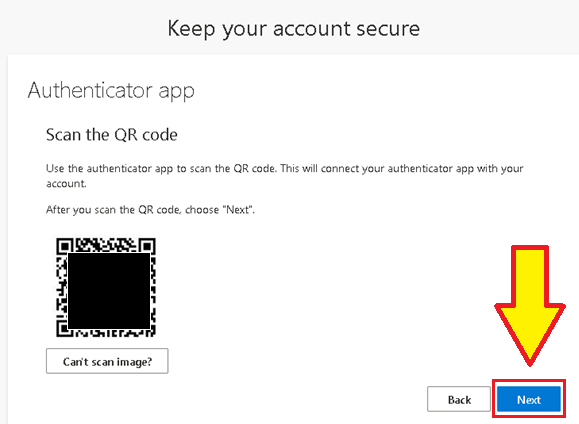
Step 9: On the computer screen, press Next:
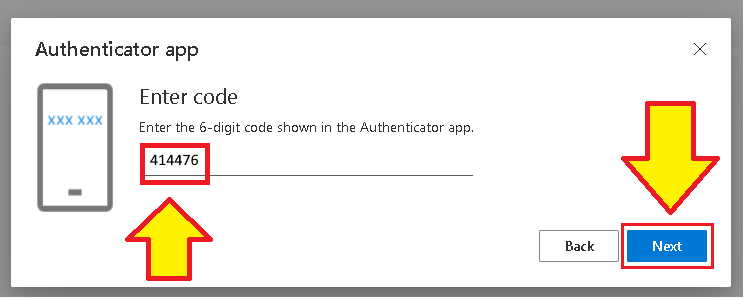
Step 10: Input new code into web page
The Code is only valid until it changes, and it changes every 30 seconds; note the circle counting down how long before the code will change. Get the code from the Microsoft Authenticator app on your mobile phone, and type it into the box and then press Next before the code changes in the Authenticator app:
Step 11: Success!
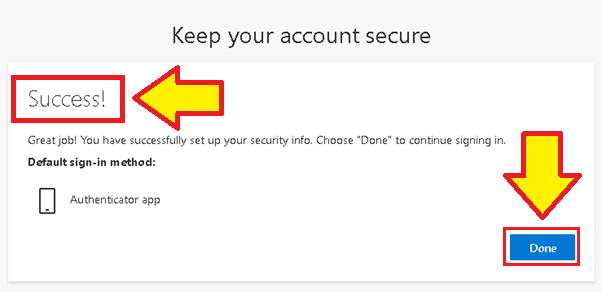
If you typed in the code correctly before it changed / expired, you should see the Success screen. Press Done to complete the process.
Step 12: Congratulations!
You have successfully set up Multi-Factor Authentication for your Microsoft365 account using the Microsoft Authenticator!
Was this article helpful?
That’s Great!
Thank you for your feedback
Sorry! We couldn't be helpful
Thank you for your feedback
Feedback sent
We appreciate your effort and will try to fix the article